
Friday, February 3

Skype tips and tricks

 
Skype has no equal when it comes toweb communication. Since this awesome VoIP service first appeared in 2003, it has come a long way to transform into an immensely valuable piece of software that not only lightens your burden of a monthly line rental charge but also offers you lots of video calling and messaging features.
Now owned by Microsoft and set to be the core messaging service integrated into the long-awaited Windows 10, Skype comes with a wider range of features you should know how to use and tweak to your advantage. So, if you seek to get the maximum efficiency out of your Skype, our today's list is right up your alley. Follow the top Skype tips and tricks and make your daily VoIP experience even more enjoyable.

Record video message

Besides being powerful at instant text messaging and voice calling, Skype lets you record something like video voicemail for your friends. If you and your mate can't both be online together, you can record a video message for him by right-clicking on the contact and choosing Send Video Message. As soon as your recording is complete, send it to your friend so he could pick it up at any convenient time for him.

Start a group call

Skype is a wonderful invention, especially since it allows sharing a group call with up to 25 people from across the world absolutely free of charge. Well, to call a new group just under a minute, go to 'Contacts' and click 'Create New Group'. Then, choose the 'Empty group' name in the header, which will open a pop-up window with the group's settings. Once you type in the name of the group, you can add people to the chat by clicking on the 'Add' button or by dragging and dropping your contacts onto the group window.

Chat commands

If you prefer communicating through chat boxes, you're most likely to know that the Skype instant messenger supports a rather wide list of chat commands you can apply to control the program. For instance, try typing /alertson [text] in the desktop client to specify what needs to appear in a chat to get you notified. Thus, /alertson party will only alert you when the word 'party' is mentioned throughout the conversion. Whereas, the /topic [text] command can be used as /topic Garry's Birthday to let you quickly change the chat topic. Below, you will find the top chat commands we've rounded up for you (yet, always keep in mind that you're using the latest Skype version, as some of these commands aren't supported by the older versions):
  • /alertsoff turns off message notifications
  • /find [text] finds specific text in a chat
  • /get role specifies your role in a chat
  • /showmembers shows all chat members and their roles
  • /get uri creates a URL of a chat to let other contacts join it
  • /kick [Skype Name] ejects a chat member
  • /leave lets you leave a chat
  • /remotelogout signs out all other instances except the current one
  • /setrole [Skype Name] MASTER | USER | ADMIN allows setting a role to each chat member
  • /showplaces lists other instances where this Skype name is currently signed in

Edit your last message

If you happen to send an instant Skype message with a mistake or a typo, and that seems to have you at wit's end, keep you head — it does ONLY seem so. As a full-featured and powerful service, Skype knows that people make mistakes and, accordingly, created a nice feature to easily fix anything in the last message they sent. Just hit the Up arrow on your keyboard, and the 'unlucky' message will appear in a chat box, from where you can edit and resend it again.

Hidden emoticons

Feeling (sad)? Or totally (inlove)? That's where Skype emoticons explain better than a thousand words. You can express your feelings in a mood message and liven up your chatting with the emoticons palette in the IM window or by typing in a certain set of characters as well as a specific word in brackets. Still, Skype has its own secrets and, along with the loads of visible emoticons, has some hidden smiles you won't find in the menu. Take a look at the full list of hidden emoticons:
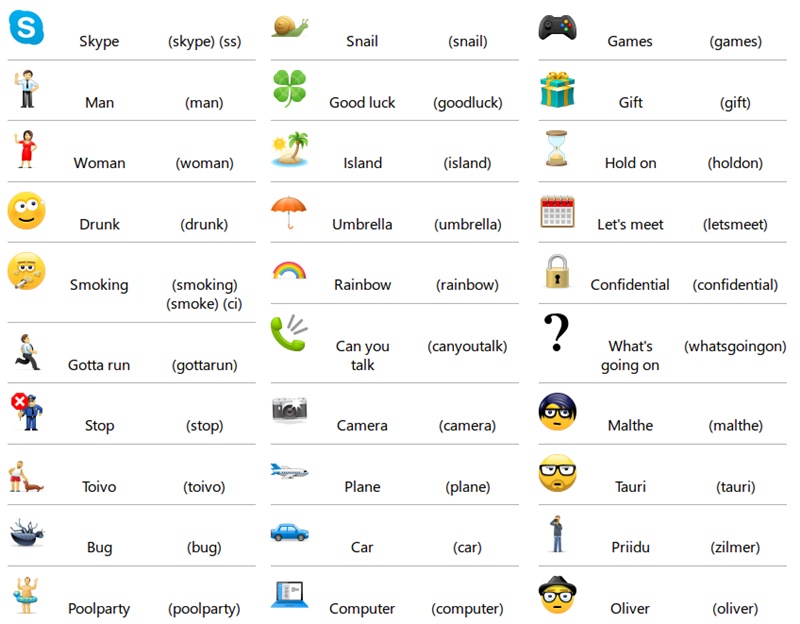

Skype hidden emoticons

The best Skype tricks for advanced users

The best Skype tricks for advanced users


The best Skype tricks for advanced users
Skype is one of the most popular communication apps, especially for those who want to make audio or video calls. However, even though Microsoft's application has been around for quite a few years now, most of its users still don't know everything it can do. The application has numerous features that are a bit harder to run across and this is why, I've decided to write an article and show our readers some of the best Skype tricks for advanced users.
Screen sharingScreen sharing

Share your screen

Many people don't know that Skype has a screen-sharing feature, which is great if you have contacts who ask you to troubleshoot their PCs. Once you're in a call with somebody, click the Call button from the upper menu bar, then press Share Screen and a new window will pop up allowing you to select the area of your display that you want to share. Just so we're clear, this won't allow the other person to control your PC or your mouse, but just to see your screen.

Use multiple accounts simultaneously

Running a secondary SkypeRunning a secondary Skype
In case you have two Skype accounts, you can log into both of them at the same time without any third-party tools and without using a different Windows account. All you have to do is to create a new Skype shortcut on your screen, then right-click it and choose Properties. In the window that opens up, go to the box named Target and at end of what is written in there type "/secondary" (without quotes), like you see in the image to the right. Run this new shortcut, and voila!

Text-based commands

Text-based commands are an important part of maximizing your efficiency and becoming a true power user, especially if you're in charge of chat rooms or have secret group meetings. In case you want to see all the available commands, the complete list is posted on a dedicated page on Skype's support page. Here are a few of the ones I frequently use: 
  • /me <text> puts your nickname in front of what you're writing, so you can talk about yourself in the 3rd person;
  • /set banlist +<Skype ID> or /set banlist -<SkypeID> bans or removes the ban for the specified person;
  • /alertson <text> will display notifications whenever your chosen text is written in the chatroom.

Sending files to multiple contacts

Unless you're already in a chat room or in a conference call, being able to send a file to multiple people at once can be quite difficult. The best solution for this, especially if this is not a one-time event or if you want to share multiple files is to create a group for those contacts. In Skype's window go to Contacts --> Create New Group and add the users that you want, then once you're done, right-click the group, pres the Send files... button and select the desired items

Friday, January 27

How To Hide Drives in Windows:

How To Hide Drives in Windows:

1.Go to run .
2.Type "diskpart".
3.Type "list volume".
4.Now select the volume you want to hide by typing "select volume n"(n is the volume number against the drive you want to hide).
eg: select volume 2.
5.Type "revome letter x"(x is the drive name).eg: remove letter D.
Done, now check my computer .

If you want to show the drive again then repeat step 1 to 4 then type "assign letter x".
Note :
**Dont try with drive C **

6 Websites To learn Coding

6 Websites To learn Coding !!!

The below Websites will help you
to learn CSS, HTML, PHP, JavaScript,
CSS3, HTML5, Ruby, etc and it
doesn't require any skills .
#1. w3schools
#2. Codecademy
#3. Code avengers
#4. CodeSchool
#5. TeamtreeHouse
#6. Dreamincode

AMAZING Google tricks!

AMAZING Google tricks!

1. GO on google and type in Google Gothic and click on i m feeling lucky.
2. Go on google and type in poopgle and click i m feeling lucky
3. Go on google and type in Google Loco and click i m feeling lucky
4. Go on google and type in i33t and click i m feeling lucky
5. Type in ewmew fudd and click i m feeling lucky
6. Type in xx-klingon and click I m feeling lucky
7. Type in xx-piglating and click on i m feeling lucky
8. Type in google BSD and click i m feeling lucky
9. Type in Google Linux and click i m feeling lucky
10. Type in google easter egg and click i m feeling lucky
11. Type in Google Cheese and click i m feeling lucky
12. Type in Google Swedish and click i m feeling lucky!
13. Type in 2204355 and click i m feeling lucky (AND THIS ONE IS VERY RARE AND ONE OF THE BEST!)
14. Type in Google chinese and click i m feeling lucky!!!
15. Type in Google latin and click i m feeling lucky
16. Go to"www.google.com"-type in"French Military Victories"and
press"I'm feeling lucky"
-Look at the question"Did you mean:...".
17. Type in adress
bar"http://www.google.com/Easter/feature_easter.html"
-Here you can find an hidden game,offered by Google.

NEW SHORTCUTS FOR WINDOWS 7

NEW SHORTCUTS FOR WINDOWS 7 .. :-)
____________________________________________
1> To select and focus applications in the taskbar, hold down the Windows key, press T, and use the arrow keys or type T repeatedly. This lets you scroll through the pinned applications
without ever touching your mouse.
.
2> To start an application that is pinned to the taskbar, hold the Windows key and press the number that corresponds with its location (Win+number from one to nine).
.
3> To access the open a command option for a specific folder, hold down the Shift key and right-click a folder.
.
4> Access the Secret "Send To" Menu

Did you know that there is a secret "Send To" menu that you can access with the Shift key? Hold down Shift, right-click the folder and select the "Send To" menu. This lets you access a
whole new set of file locations, so you can quickly re-locate a folder without the hassle
.
5> Modify the Default "Send To" Menu
If you want to change the options that appear in your default "Send To menu," type "shell:sendto" into the location bar of a folder. You can then drag and drop new folder locations to
the Send To folder.

Speed up your computer with Notepad

++++++++Speed up your computer with Notepad+++++++
______________________________________________
Notepad can be used to speed up your computer by clearing the RAM. Without a doubt, RAM is one of the most important resources in your computer.
It’s comparable to gas in a car. The more free RAM you have, the faster your computer will perform. Clearing the RAM cache is a efficient way to improve your performance.
Before tweaking notepad to speed up your PC, follow these steps:
1) Go to “MyComputer” and click on tools (in case you have xp) or organize (in case you have windows 7).
2) Go to “folder and search” option and hit your mouse left key.
3) Select view and uncheck “Hide extension for known file type”
4) Click OK.
Now the initial setting are done and notepad work comes:
1) Open notepad.
2) Type: “mystring=(80000000)” (without quotes).
3) Save the notepad file with the name RAM. Vbe and Close it.
4) Now every time you click on this file, it will clear your computer’s RAM and makes it almost 80% faster.
ENJOY !!

Make ur Windows Genuine using notepad

Make ur Windows Genuine using notepad!!!! :) (Y)
_________________________________________________
1. Copy and Paste the following code in the Notepad.
Windows Registry Editor Version 5.00
[HKEY_LOCAL_MACHINE\SOFTWARE\Mi crosoft\WindowsNT\CurrentVersion\WPAEvents]
"OOBETimer"=hex:ff,d5,71,d6,8b,6a,8d,6f,d5,33, 93,f d
"LastWPAEventLogged"=hex:d5,07,05,00,06,00,07, 00,0 f,00,38,00,24,00,fd,02
[HKEY_LOCAL_MACHINE\SOFTWARE\Mi crosoft\WindowsNT\CurrentVersion]
"CurrentBuild"="1.511.1 () (Obsolete data - do not use)"
"InstallDate"=dword:427cdd 95
"ProductId"="69831-640-1780577-45389"
"DigitalProductId"=hex:a4,00,00,00,03,00,00,00 ,36, 39,38,33,31,2d,36,34,30,2d,\
31,37,38,30,35,37,37,2d,34,35,33,38,39,00,5a,00,00 ,00,41,32,32,2d,30,30,30,\
30,31,00,00,00,00,00,00,00,00,0d,04,89,b2,15,1b,c4 ,ee,62,4f,e6,64,6f,01,00,\
00,00,00,00,27,ed,85,43,a2,20,01,00,00,00,00,00,00 ,00,00,00,00,00,00,00,00,\
00,00,00,00,00,00,00,00,00,00,00,31,34,35,30,34,00 ,00,00,00,00,00,00,ce,0e,\
00,00,12,42,15,a0,00,08,00,00,87,01,00,00,00,00,00 ,00,00,00,00,00,00,00,00,\
00,00,00,00,00,00,00,00,00,00,00,00,00,00,00,00,00 ,94,a2,b3,ac
"LicenseInfo"=hex:9e,bf,09,d0,3a,76,a5,27,bb,f 2,da ,88,58,ce,58,e9,05,6b,0b,82,\
c3,74,ab,42,0d,fb,ee,c3,ea,57,d0,9d,67,a5,3d,6e,42 ,0d,60,c0,1a,70,24,46,16,\
0a,0a,ce,0d,b8,27,4a,46,53,f3,17
2. Save the file with the .reg extension.
3. If you run the file means it will ask you the confirmation to add the value to your Registry.
4. Press Yes.
5. Reboot your System.
6. Start Downloading from Microsoft

How To Resume Broken Links with IDM (Internet Download Manager

How To Resume Broken Links with IDM (Internet Download
Manager) :
_______________________________________
We all know Internet Download Manager (IDM) is the most
powerful and popular downloader.But how you feel when
you have already downloaded a large part of a big file (say
60% to 99%) and IDM says…..ERROR-link broken..can’t
resume etc…although it was a resumeable download link?
Definitelyyou feel like throwing your system.Same was the
case with me but I’ve discovered a trick to resume broken
IDM downloads.

Though sometime IDM says ‘ERROR-link broken..can’t
resume’ etc. for a resumable link you can easily resume
your broken downloads(condition: file should be available
in the site form where you started your download/file
hosting server/mirrors) with this simple and effective
trick.Just follow the following steps.
Steps:
1.Double click the download name in main IDM window
that shows ERROR to resume.
2.Click the http link of file (highlighted in blue colour)
3.Download link will open in the browser and a window
appears just after that.
4.Click ‘OK’ to resume.Most probably the download will
resume.
If it still doesn’t resume then continue with following
steps-
5.Open the website/mirror site of the same file that you
were downloading.
6.Start a new download of the same file again which was
showing ERROR from website/mirror site).
7.After download starts-pause it.Double click new
download’s name.
8.Copy the address from ‘Address’ box of new download
(shown with blue colour).
9.Paste the copied address to old download’s similar
‘Address’ box and press ‘OK’.
10.Now from main IDM download window select the old
download that was showing ERROR and click on resume.
Now after the 10th step I expect a big smile on your
face.Yes…..thatold file which was not resuming is now
again downloading with full speed)
I hope u really happy

Things that MICROSOFT Could not Explain!

Things that MICROSOFT Could not Explain!
TRY this....
MAGIC #1
Found that nobody can create a FOLDER anywhere on the Computer which can be named as "CON". This is something funny and inexplicable? At Microsoft the whole Team, couldn't answer why this happened! TRY IT NOW, IT WILL NOT CREATE A "CON" FOLDER
MAGIC #2
For those of you using Windows, do the following:
1.) Open an empty notepad file
2.) Type "Bush hid the facts" (without the quotes)
3.) Save it as whatever you want.
4.) Close it, and re-open it.
Noticed the weird bug? No one can explain!
MAGIC #3
Again this is something funny and can't be explained?
At Microsoft the whole Team, including Bill Gates, couldn't answer why this happened!
It was discovered by a Brazilian. Try it out yourself?
Open Microsoft Word and type
=rand (200, 99)
And then press ENTER And see the magic?..!
Magic #4
Did you know that a flight number from one of the planes that hit one of the two WTC towers on 9/11 was Q33N. In Notepad / WordPad or MS Word, type that flight number i.e Q33N. Increase the font size to 72. Change the font to Wingdings. ..... u will be amazed by the findings!!!

Earth : A Global map of wind , weather and ocean conditions

Just type earth.nullschool.net in the Web browser you can see the wind pattern view of the whole world wind flow. Zoom in near chennai. It's just amazing.